Migrate your Copy Me That recipes to Cookfolio, photos included
You have spent years clipping recipes from your favourite websites with Copy Me That, and your library now runs to dozens, maybe hundreds, of recipes. Retyping them one by one is not an option. You will not have to. Cookfolio imports the whole library in one pass: titles, photos, ingredients, steps, servings, links back to the original websites and your notes. If you are starting from a mix of paper notebooks, screenshots and files instead, here is how to digitize your family recipes.
Copy Me That’s export screen offers two formats, and only one of them brings your photos along.
Before you start: exporting from Copy Me That
You run the export from the Copy Me That app:
- Open Copy Me That and tap the menu, the three lines at the top left
- Choose Download recipes
- Under Recipes to download, tick All recipes except unconfirmed
- Under File format, tick HTML (Single .html file plus images)
- Tap Download recipes and save the resulting
.ziparchive
Get that file onto the device where you use Cookfolio: AirDrop, Google Drive, or simply an email to yourself. Any way of moving a file will do.
Which format to choose?
Copy Me That’s export screen offers two formats. Only one of them is the right answer.
HTML: this is the one. Copy Me That itself recommends it, as the long-term backup that other programs can import. You get an archive holding all your recipes along with their photos. It is the only format Cookfolio reads.
Text: not supported. This option produces one .txt file per recipe, meant for printing or reading offline. The archive contains no photos. If you picked it by mistake, Cookfolio will tell you as soon as the import starts: it will find no recipes in the file. Simply run the export again with HTML ticked.
The first block, Recipes to download, decides which recipes go into the archive. For a complete move, keep All recipes except unconfirmed. The other options export only part of your library: your favourite recipes (Starred recipes), the ones on your shopping list, or the ones in a particular collection. They come in handy for a trial run on a few recipes before you move everything across.
So: All recipes except unconfirmed, HTML, then Download recipes.
How to import your Copy Me That recipes into Cookfolio
-
Open Cookfolio, go to
Settings, then tap Import my recipes from another app.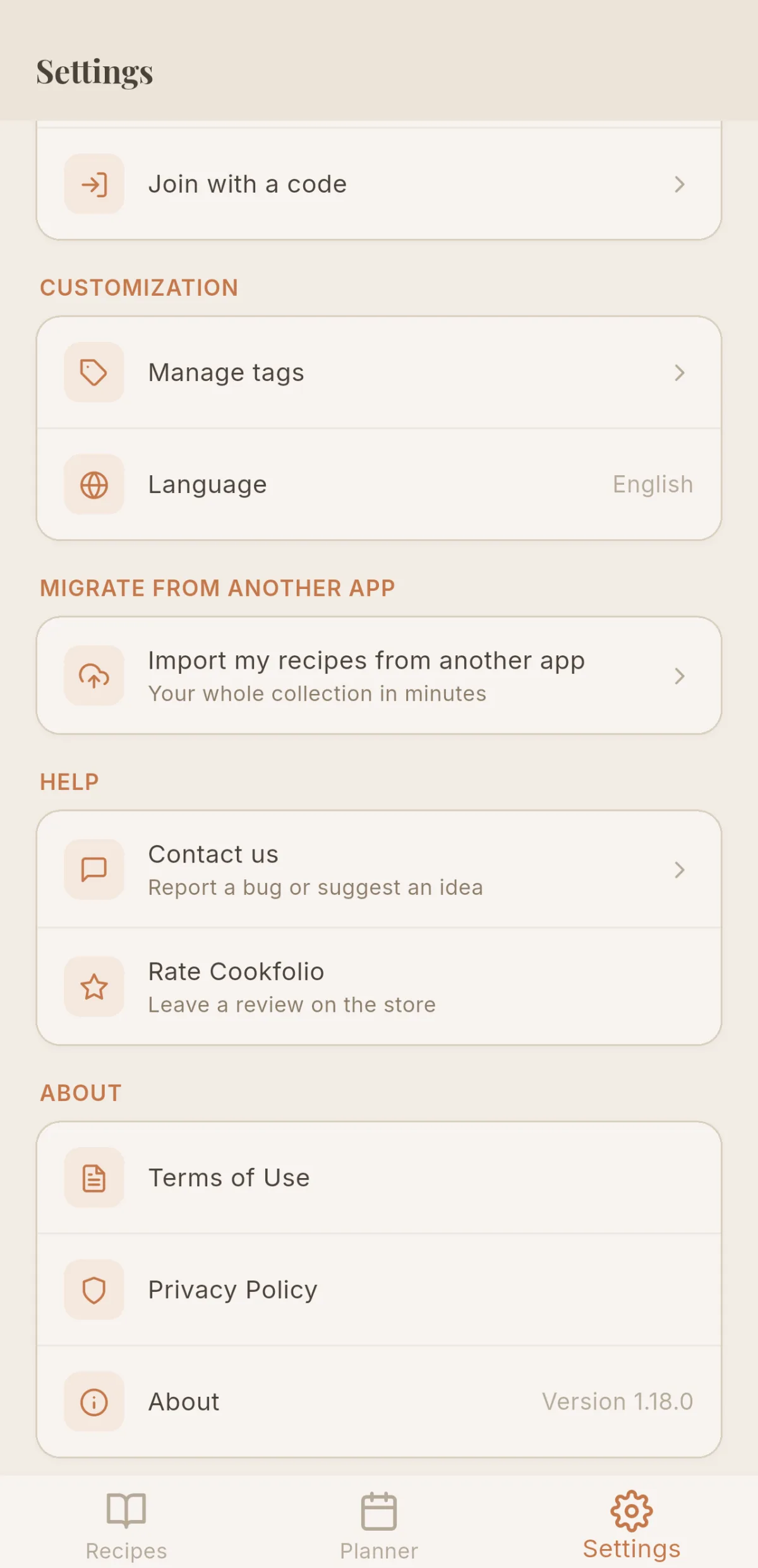
-
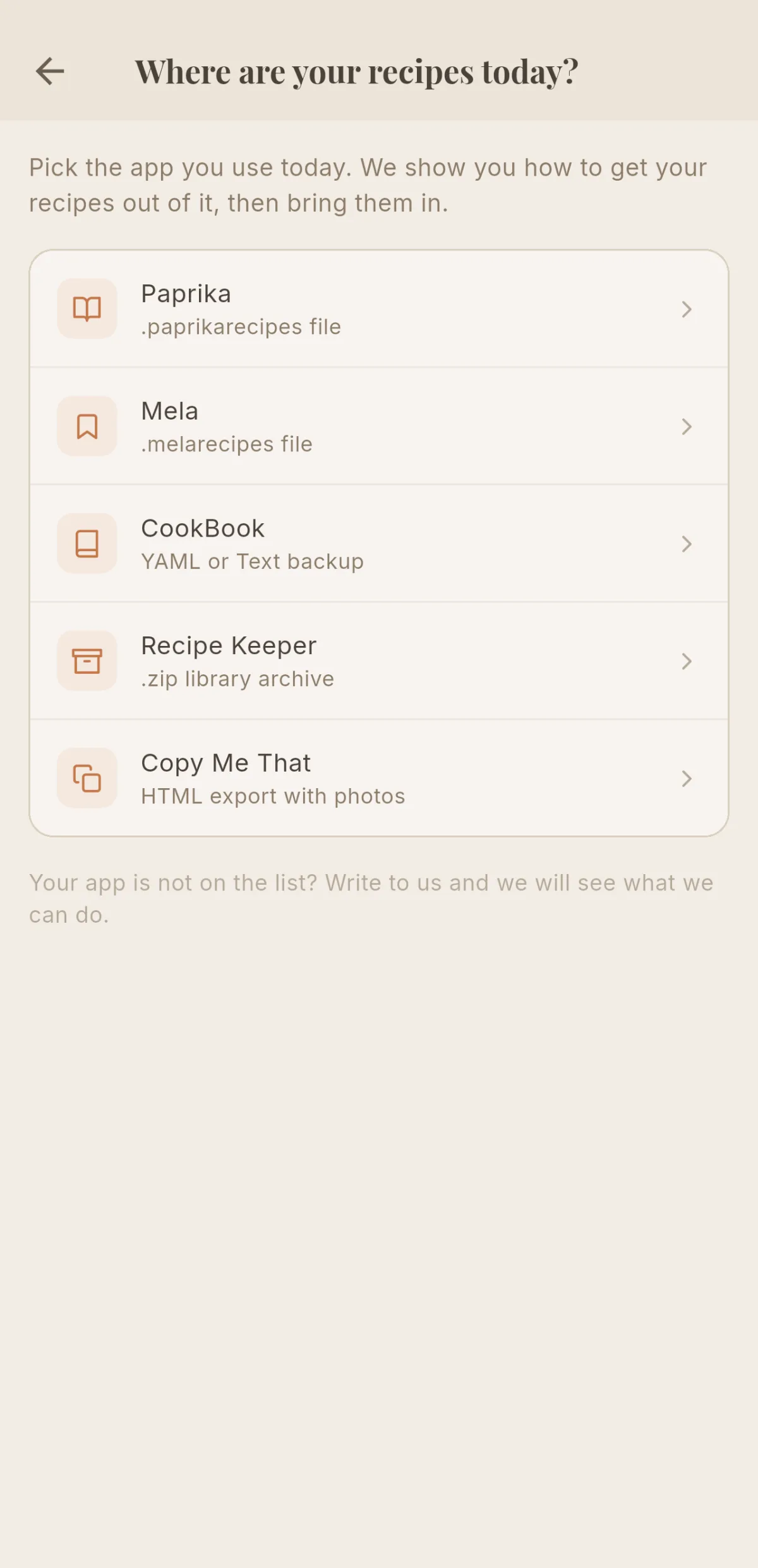
Choose Copy Me That from the list of source apps.
-
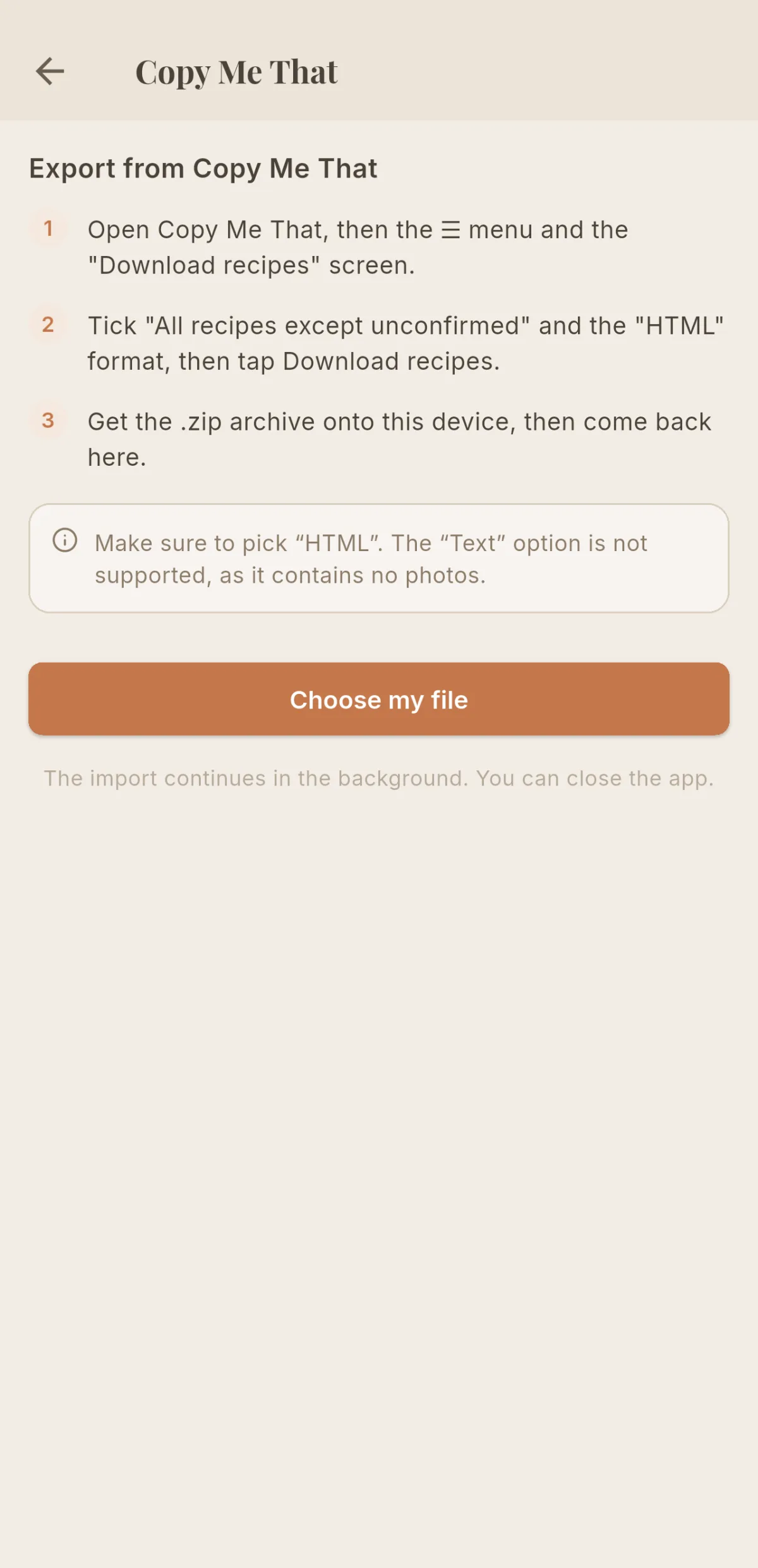
Tap Choose my file. The screen first runs through the export path and the format to tick, in case you have not run the backup yet.
-
Select your
.zipfile. Cookfolio shows how many recipes it found and starts the import in the background. A banner at the top of the screen tracks progress, then tells you how many recipes were added.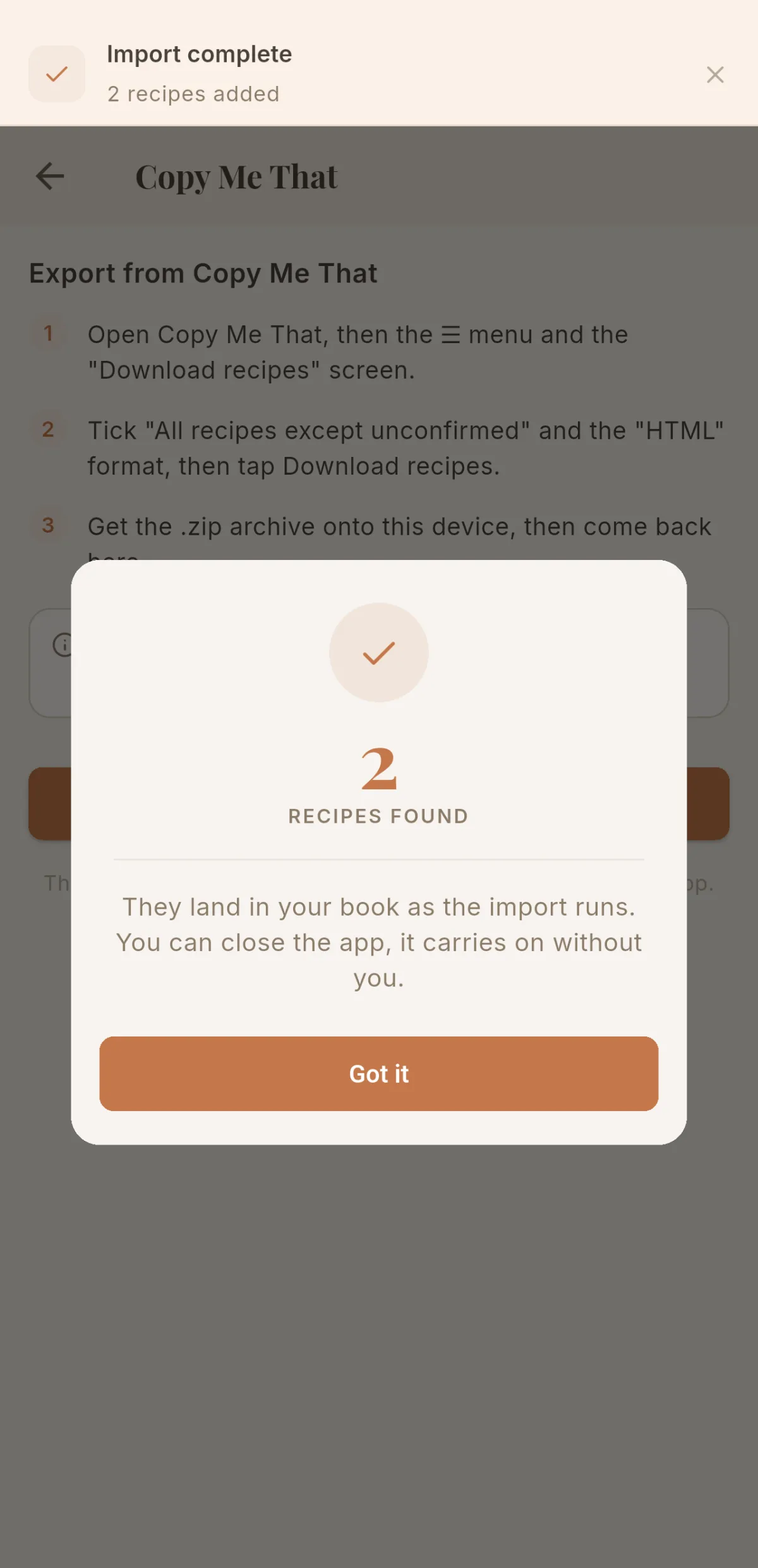
-
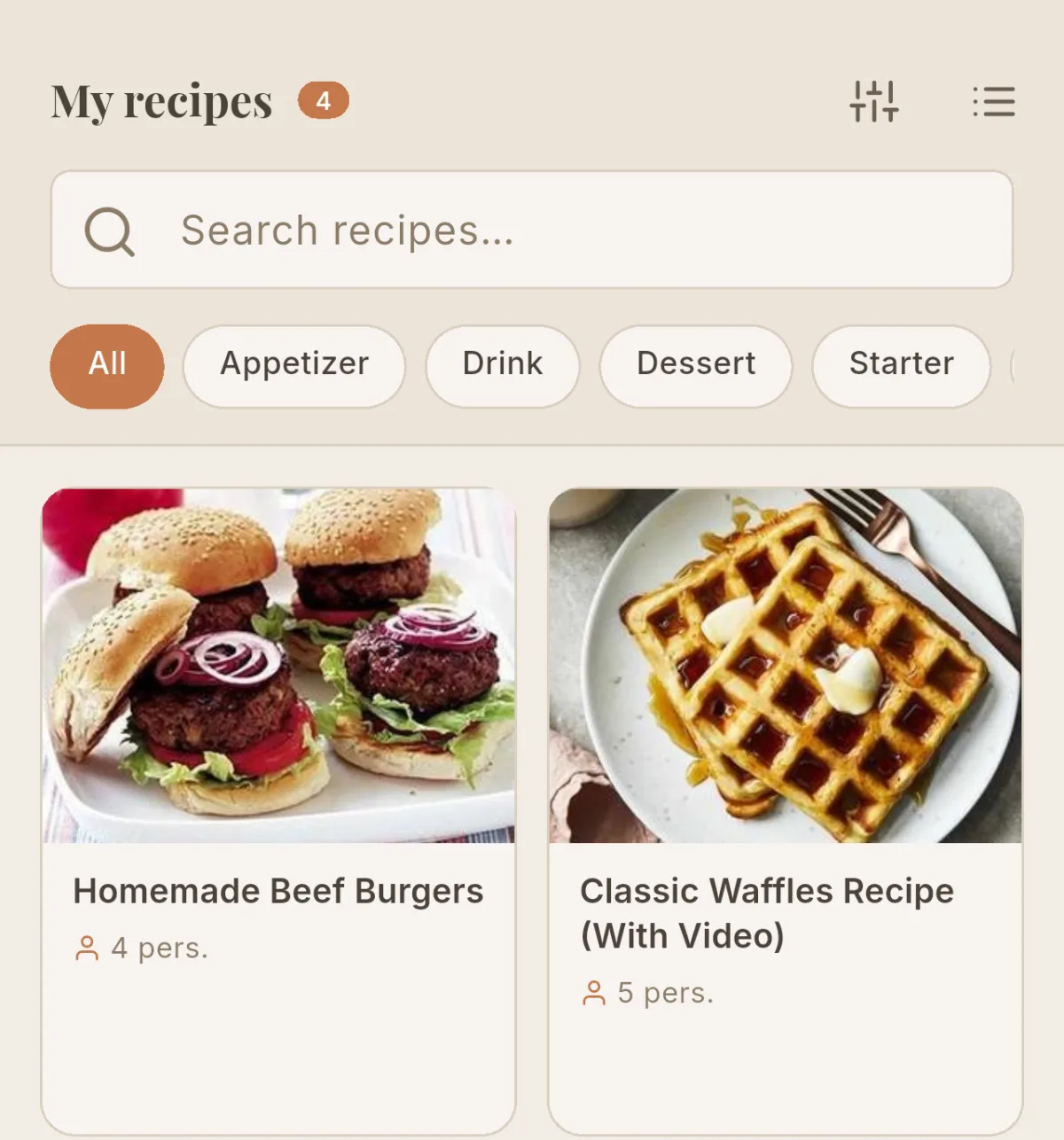
Find your recipes in your library. They show up as the import goes along, each with its photo.
-
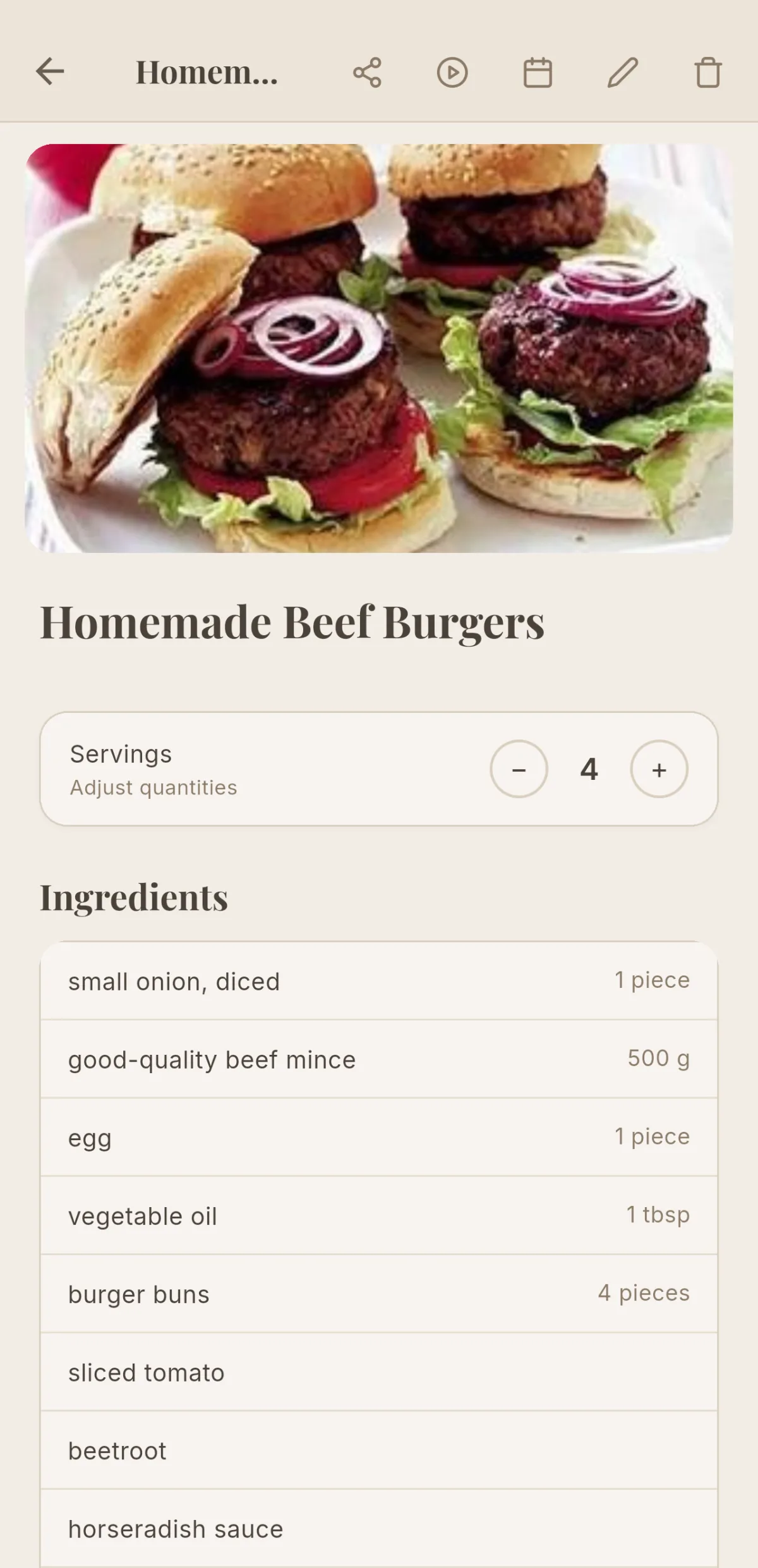
Open any imported recipe: structured ingredients, adjustable servings, photo kept.
What comes across
The photos. Every illustrated recipe arrives with its image. If an image is missing or turns out to be unreadable, the recipe still imports, simply without its photo. A failed image never costs you a recipe.
The ingredients, with their quantities. Each ingredient arrives with its quantity, its unit and its name. That is what lets you change the number of people on an imported recipe and watch every quantity recalculate. Fractions such as 1 ½ or ⅓ and accented characters survive the trip intact. The line 2 cups all-purpose flour keeps its cups in the saved recipe, and reads 480 ml in the Metric setting, never grams. To choose between Metric and US units, see US or metric units for your recipes.
Whole ingredients. Copy Me That sometimes splits an ingredient such as 1 small onion, diced over two lines. In Cookfolio, it arrives as a single ingredient. You will not find “diced” sitting on its own in your shopping list.
The steps, with their sections. Numbered steps come across in order, and your recipe keeps the same number of steps as in Copy Me That. When a recipe is organised into parts, the step headings land above the right step.
The ingredient sections. Ingredient headings come across too, and never appear as ingredients in their own right. When their place is uncertain, Cookfolio leaves them out rather than put them above the wrong ingredient.
The servings. 4 Easy becomes 4 servings, and Original recipe (1X) yields 5 servings becomes 5, not 1.
The source link. If the recipe came from a website, the link follows and stays tappable from the recipe page.
Your notes. The recipe’s notes are carried into the notes on the Cookfolio recipe.
The categories, turned into tags. When a name matches a tag you already have, the recipe joins that existing tag. Otherwise Cookfolio creates the tag for you. A recipe filed twice under the same word does not produce two tags.
Stray text from the original websites
Copy Me That clips recipes from web pages, and it sometimes brings along bits of the page around the recipe: an “Ad” label between two steps, where the site displayed an advert, or an instruction such as “Gather all ingredients.” in the middle of the ingredients.
Cookfolio removes some of it. The rest is imported as it stands, because that is what your recipe contains in Copy Me That. You can correct it afterwards on the recipe page, like any other text.
What does not come across
Prep and cook times. Copy Me That’s export does not include them, even for a recipe clipped from a site that displayed them. Imported recipes therefore arrive with no times set, and you can add them whenever you like.
The favourite flag and the rating. Cookfolio has no equivalent today, so they are set aside.
Your meal plan and your shopping list. The archive holds recipes only. Copy Me That’s meal plan and shopping list are not part of it. In Cookfolio, the shopping list is built from your weekly planner, so you can rebuild it in a few taps once your recipes are in.
How many recipes at once?
Up to 2,000 recipes per archive, within a 150 MB ceiling. On a Copy Me That export it is the photos that weigh, not the text. If your collection is bigger than either bound, export it in several passes, for example one collection at a time. Overlapping exports never produce duplicates.
What happens if the import is interrupted?
You can close the app while it runs. The import carries on without you, and your recipes are waiting when you come back. There is no “Retry” button to hunt for, and no half-imported recipe.
What next?
Once the library has moved, you can keep growing it without ever opening Copy Me That again: paste a recipe website link, import from a YouTube video, or photograph a cookbook page. Old and new recipes live in the same book, with the same adjustable servings, the same weekly planner and the same cooking mode.
Something wrong? Tell us
If an import fails, or a recipe lands crooked, there is no need to look for the fix yourself. Open Cookfolio, go to Settings, then Contact us, and describe what happened. The message reaches us with the details of your import already attached.
Every Copy Me That library is different, because every source website is. A real file we failed to read is the most useful thing you can send us: that is how the next version stops failing on it. We will do our best to unblock you quickly.
Plan required
One-go migration is included in Cookfolio’s Pro and Family plans. The free plan allows 5 recipes and 5 imports, enough to try the app out, not enough to move a library.
Try it now
Open Copy Me That, the menu, Download recipes, HTML format. Then open Cookfolio and let it do the rest. Your collection follows, photos included.
Try Cookfolio for free
5 free recipes + 5 free imports. No credit card required.