Migrate your CookBook recipes to Cookfolio, photos included
You have built up a real library in CookBook by Fresh Ideas, and you would rather not retype any of it. You do not have to. Cookfolio imports the whole collection in one pass: titles, descriptions, ingredients, steps with their section headers, prep and cook times, and the photos. If you are starting from a mix of paper notebooks, screenshots and files instead, here is how to digitize your family recipes.
CookBook offers four backup formats, and they are not equivalent. Picking the wrong one costs you your photos and your timings. It takes ten seconds to pick the right one.
Before you start: export from CookBook
CookBook calls its export “Backup”. The path is the same on iOS and Android:
- Open CookBook and pull out the side menu
- Tap Settings
- Tap Backup / Export recipes
- Pick a format in the dialog, then tap Backup
CookBook hands you a .zip archive. Get that file onto the device where you use Cookfolio: AirDrop, Google Drive, or simply email it to yourself. Anything that moves a file works.
Which backup format should you pick?
The dialog offers four options. Only one of them is the right answer.
YAML files: pick this one. It is the only format that brings your photos with it. It also keeps everything else: the title, the description, the servings, prep and cook times, the source link, the ingredients and the steps.
Text files: works, but it costs you. The text export keeps the title, the source link, the ingredients and the steps. It drops the description, the servings, both times, and the photo. Cookfolio accepts it, and every recipe imports, but you will fill those fields in by hand afterwards. Use it only if the YAML option is missing from your version of the app.
CookBook files: not supported. This is CookBook’s own format, and it brings nothing more than YAML.
PDF files: not supported. If you have a few PDFs from elsewhere, Cookfolio’s single-recipe import reads them one at a time.
So: YAML files, then Backup.
How to import your CookBook recipes into Cookfolio
-
Open Cookfolio, go to
Settings, then tap Import my recipes from another app.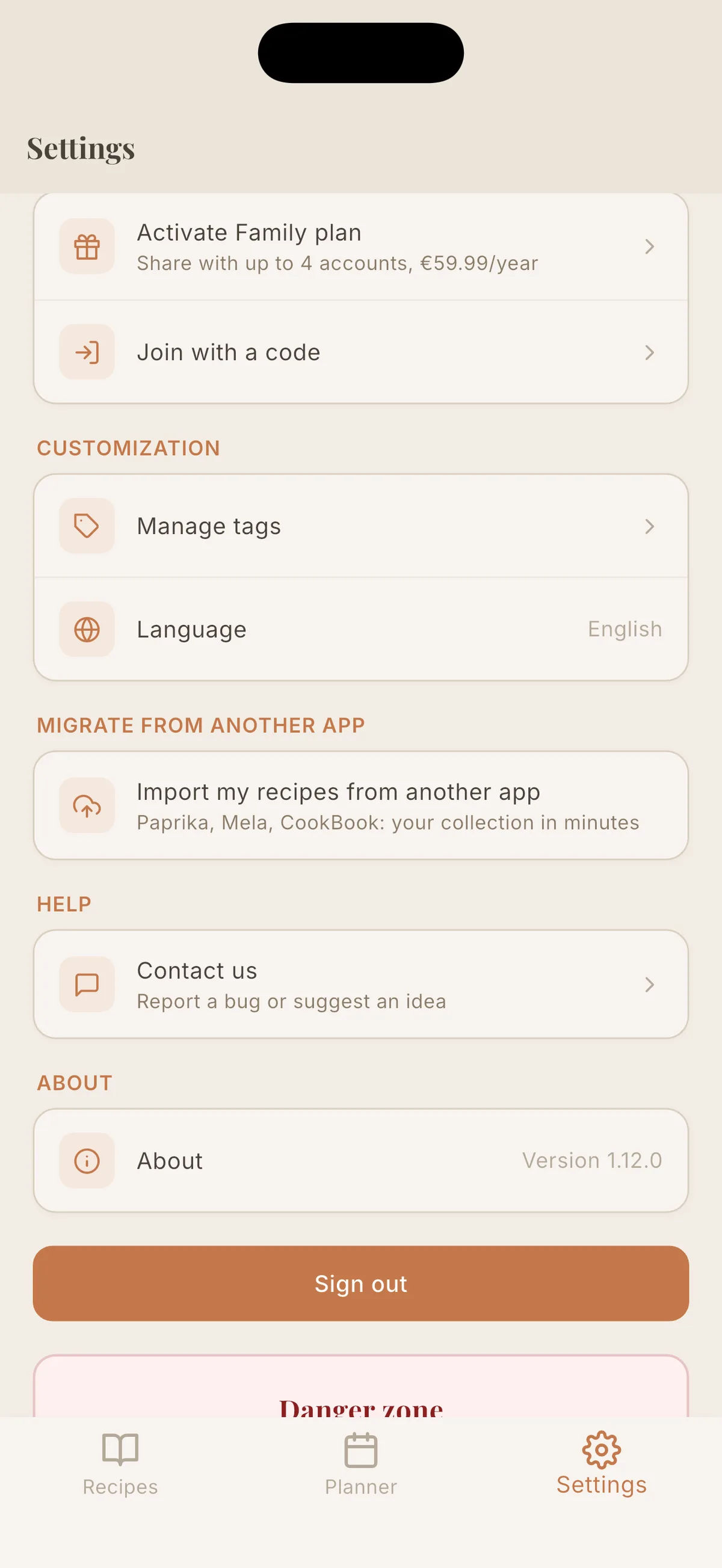
-
Pick CookBook from the list of source apps. The screen recaps the export steps, in case you have not run the backup yet.
-
Select your
.zipfile. Cookfolio confirms how many recipes it found and starts the import in the background.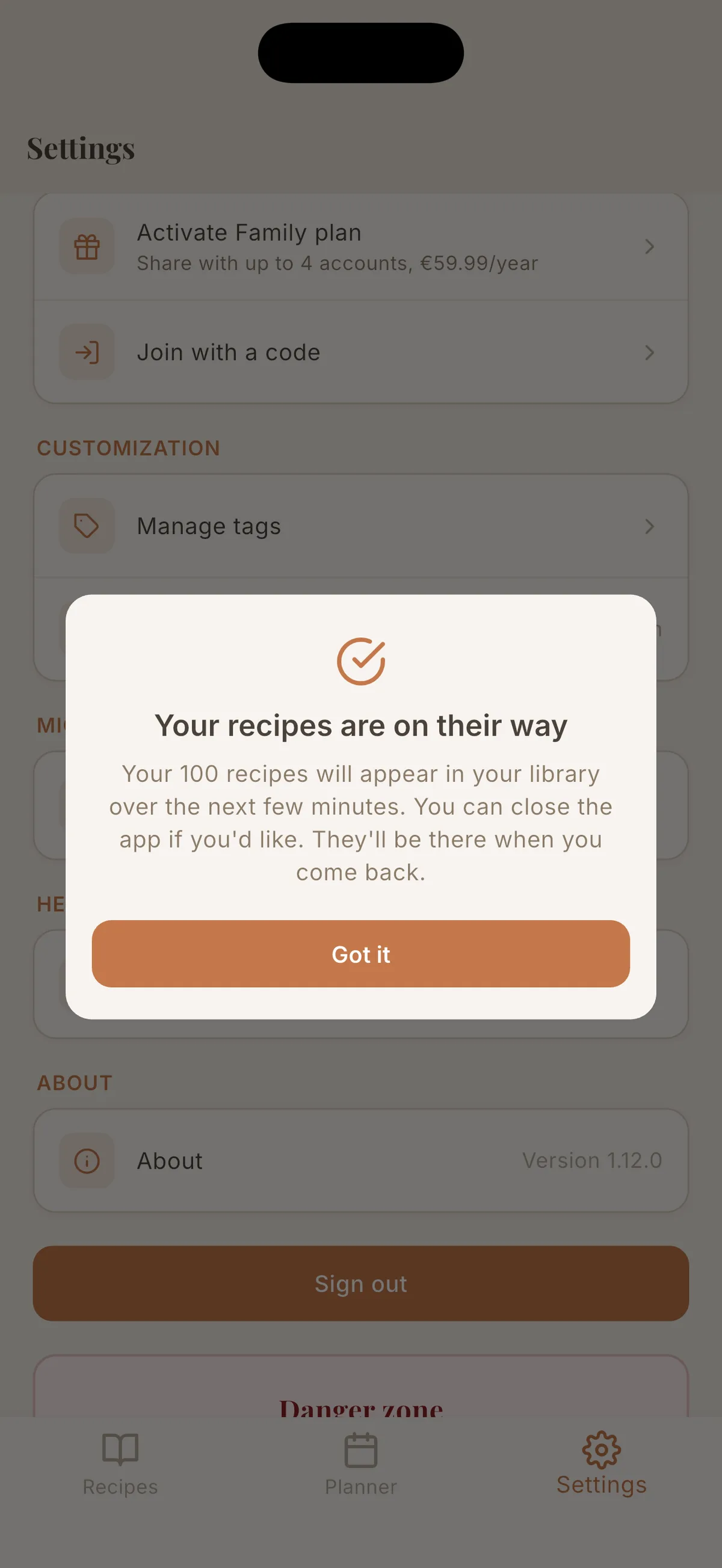
-
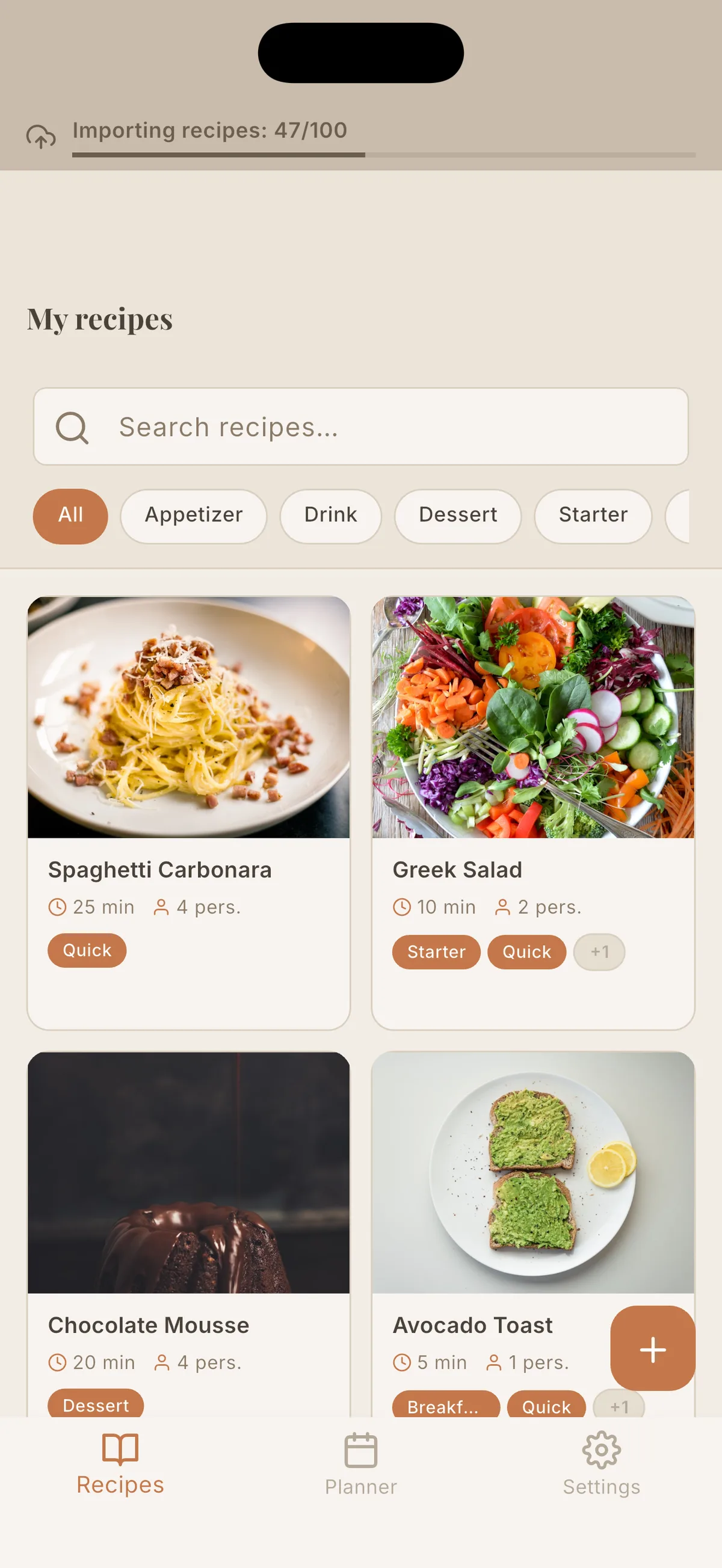
Keep using the app while it works. A banner at the top tracks progress, and recipes land in your library as they come through.
-
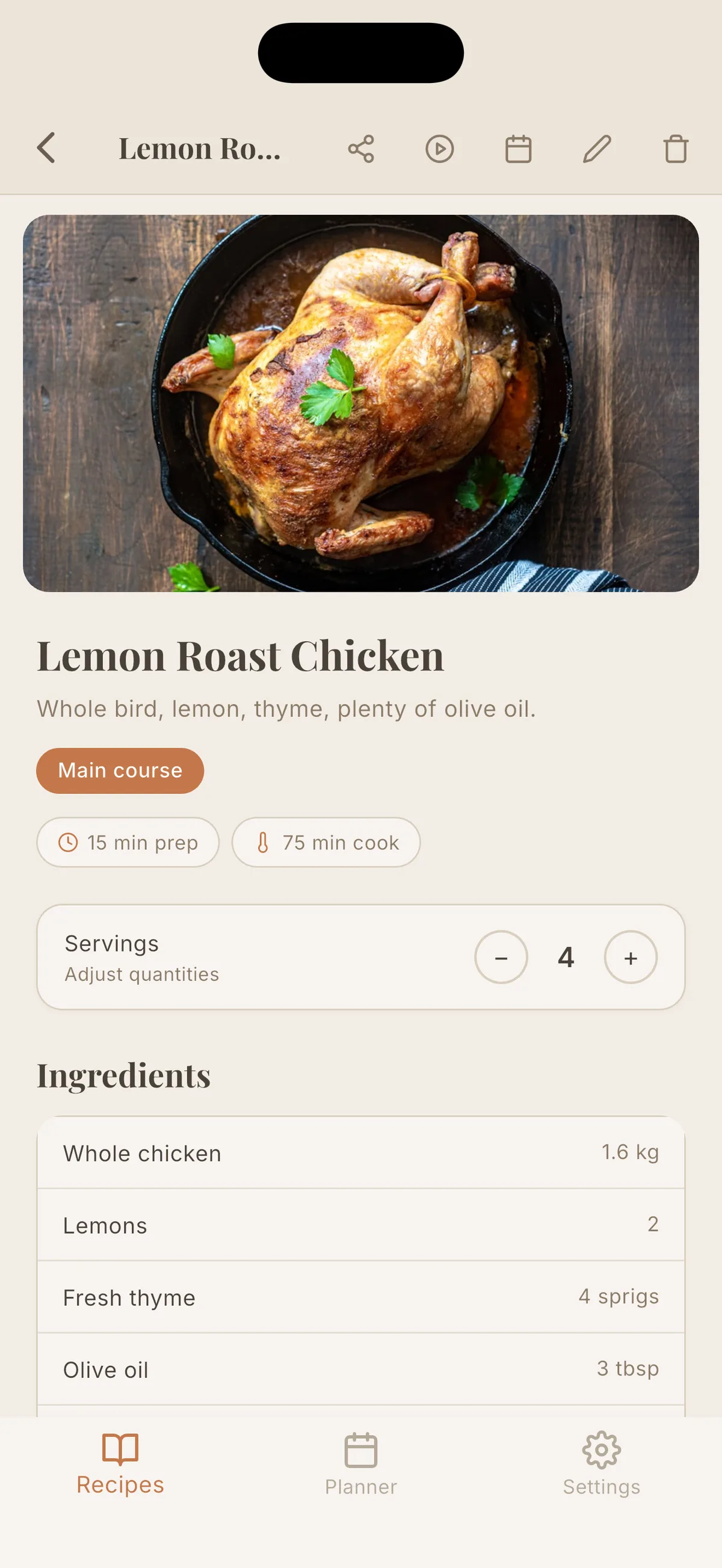
Open any imported recipe: structured ingredients, adjustable servings, the photo, and the section headers preserved in the steps.
What comes across
Photos. Your recipes arrive illustrated, just as they were in CookBook. YAML export only. If a photo cannot be retrieved, the recipe still imports, simply without its picture. A missing image never costs you a recipe.
Ingredients, with their quantities. Each ingredient arrives with its quantity, its unit and its name. This is what lets you change the number of servings on an imported recipe and watch every quantity recompute. Vulgar fractions, degree signs and accented characters survive the trip intact. It is also what lets each quantity show in the measurement system you pick, Metric or US.
Steps, with their sections. The section headers of your steps, such as Knead the dough or Rise, sit above the right step instead of being turned into numbered steps. A recipe organised in five parts still reads as five parts.
Times and servings. Prep time and cook time come across. So do servings: 2 12-inch pizzas becomes 2 servings and 8 cookies becomes 8.
The source link. If the recipe came from a website or a video, the link follows.
What does not come across
Tags. CookBook’s export carries no category or collection, in any of its four formats. Imported recipes therefore arrive untagged. Cookfolio sets up eleven default tags with every account, and you can add your own, so retagging stays quick even on a large library.
Favourites and cook counts. Cookfolio has no equivalent, so they are left out rather than stored somewhere nobody would ever see them.
Anything only the PDF has. Formatting, page layout, hand annotations on a scanned page: none of that is in the YAML export.
How many recipes can I import at once?
Up to 2,000 recipes per archive, within a 150 MB limit. A CookBook YAML export is very light, so the size limit is not the one you will meet first. If your collection is larger, export it in several passes: overlapping exports never produce duplicates.
What happens if the import is interrupted?
You can close the app while it runs. The import carries on without you, and your recipes are waiting when you come back. There is no “Retry” button to hunt for, and no half-imported recipes.
What’s next?
Once the library has moved, you can keep growing it without ever opening CookBook again: paste a link from a recipe site, import from a YouTube video, or photograph a page from a paper cookbook. Old and new recipes sit in the same book, with the same adjustable servings and the same cooking mode.
Something went wrong? Tell us
If an import fails, or a recipe comes through wrong, do not fight it on your own. Open Cookfolio, go to Settings, then Contact us, and describe what happened. The message reaches us with the details of your import already attached.
The person who writes the app is the person who answers. Every CookBook export is slightly different, and a real file that we could not read is the most useful thing you can send us: it is how the next version stops failing on it. We will do our best to unblock you quickly.
Plan required
Bulk migration is included in Cookfolio’s Pro and Family plans. The free plan allows 5 recipes and 5 imports, which is enough to try the app but not to move a library.
Try it now
Open CookBook, Settings, Backup Recipes, YAML files. Then open Cookfolio and let it do the rest. Your collection follows you, photos included.
Try Cookfolio for free
5 free recipes + 5 free imports. No credit card required.